Daily Rates
The Daily Rates menu allows users to view and modify rates of a rate calendar. For example, the user at fictional Casillas Inn may want to set different rates only for Dec 31 and Jan 01 because it is a peak period for them.
The occupancy percentage, and the overridden rate details are also displayed on the Daily Rates screen. Users can also select multiple cells at a time and apply the following options:
-
Set Rule Set
-
Revert Rates
-
Set Restrictions
-
Revert Restrictions
When users enable the Display Occupancy and Overridden Rates flag in the Daily Rate Settings screen, the following details are displayed:
-
The Occupancy % is calculated for each room type for the particular date and displayed in the cell. The Occupancy % is calculated for the room type in all the rate plans as follows: Occupancy % = Occupied Rooms/Rooms Available.
-
When a user overrides the rate for a date, the following details are displayed:
-
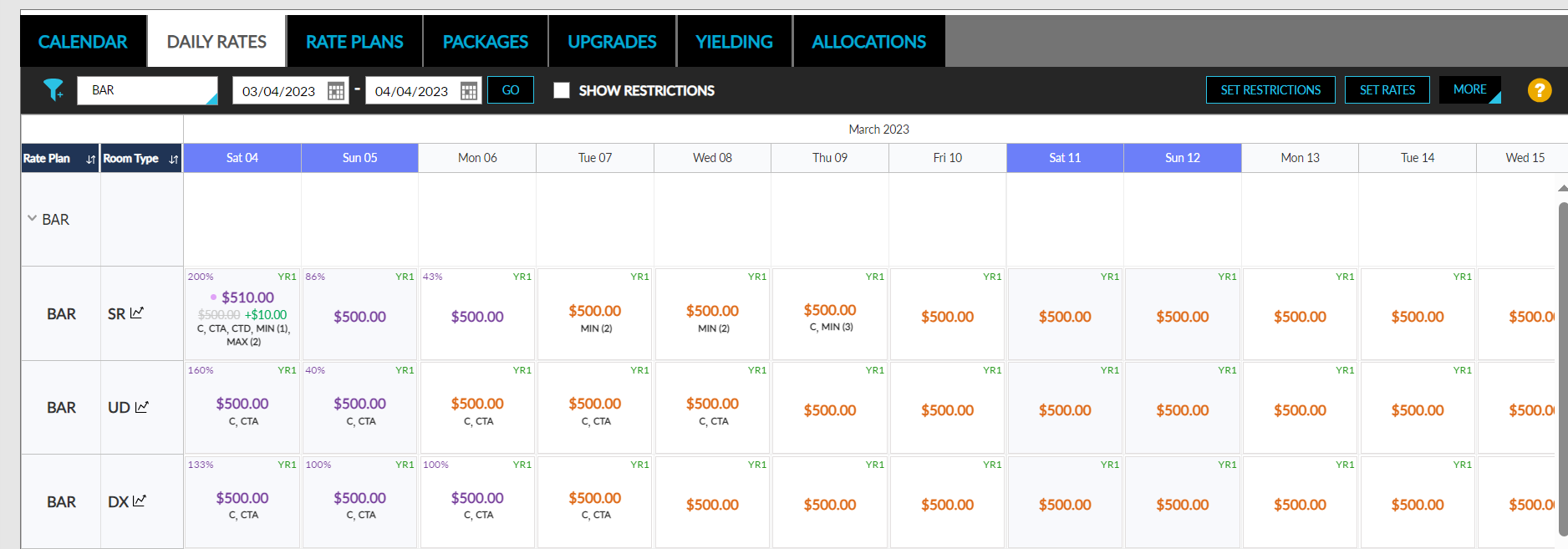
Overridden Rate: The rate that is being overridden is struck out and displayed below the Current Rate.
-
Current Rate: The rate that is being applied is displayed in the center of the cell in bold.
-
Increased or Decreased: Displays the amount that is increased or decreased after the override. For example, when a user overrides a rate from $200 to $250, the overridden rate is displayed as $200, the current rate is displayed as $250, and the increase or decrease in amount is displayed as $50.
-
-
Users can select multiple cells in the Daily Rates screen by clicking on a cell, dragging, and selecting the other required cells. When multiple dates are selected, the following fields are updated in the Set Rates screen:
-
Start
-
End
-
No of Days
-
Days
-
Room Types
-
Rate Plans
-
Set Rates
Navigate to Settings ➜ All Settings ➜ Reservations ➜ Rates.
Navigate to Daily Rates tab.
Select a calendar from the drop-down list on the left of the screen.
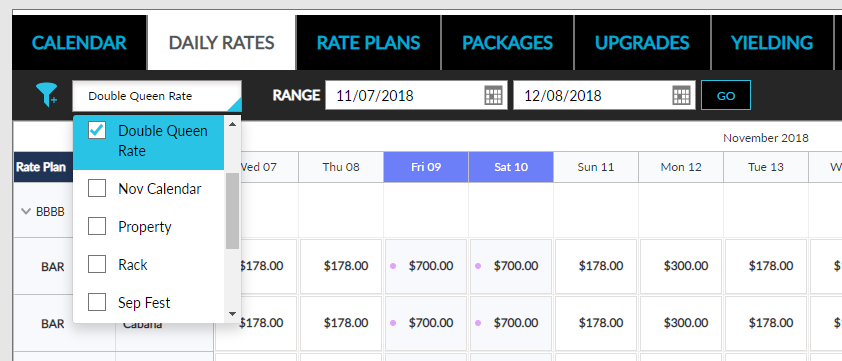
Set a date range for the calendar. Filter by Rate Plan, Package, and Room Type, if required.
Sort Rate Plan and Room Types in alphabetical order, if required.
Click on the Set Rates button from the right side of the screen. The Set Rates dialog box appears.
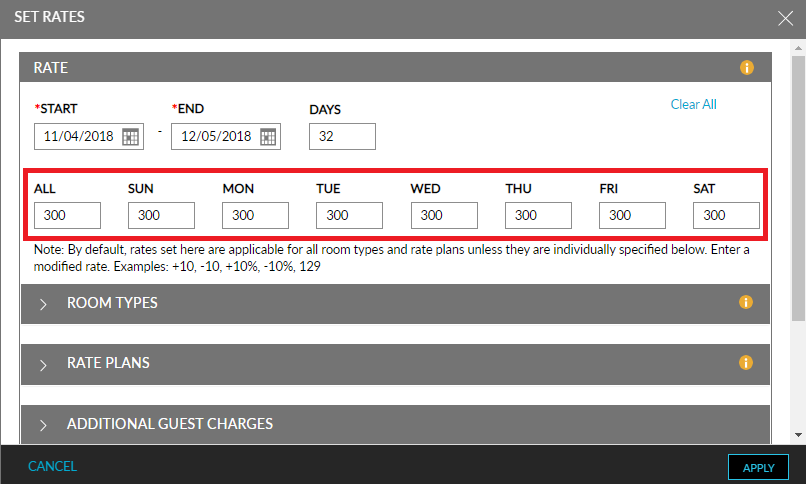
Under the Rate section of the Set Rates pop-up screen, enter the rate to be applied for the set date range. The date range as specified in the Daily Rates screen calendar will show up on the screen.
Set rates for specific days or all the days. Please note that both fixed rates and modifiers can be set. Example: +10, -10, +10%, -10%, 129.
By default, the Rate section rates are applicable for all room types and rate plans unless specified in the Room Types and Rate Plans sections within the Set Rates pop-up screen.
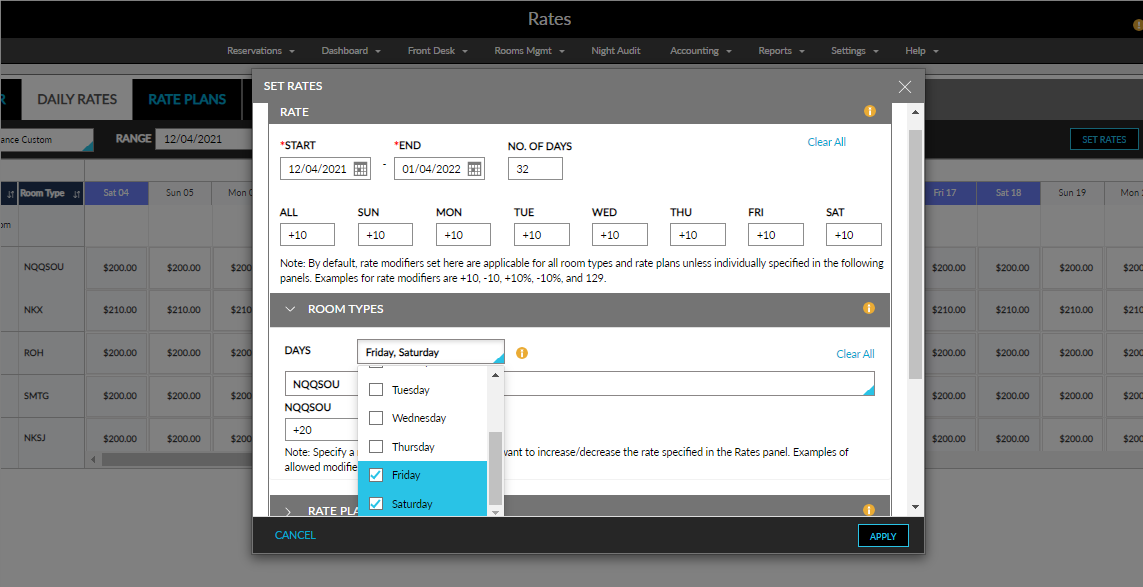
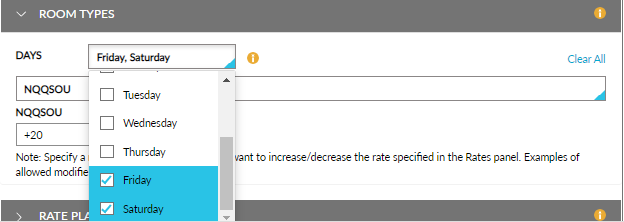
When setting rate modifiers to override rates for room types in the Daily Rates screen, users can specify the days of the week for a particular date range during which the rates are applicable.
Navigate to Settings ➜ Rates Daily Rates ➜ Set Rates to set rate modifiers.
Select the days of the week for which the rate modifiers are to be applied from the drop-down list.
Select one or more room types and enter the modifier for each room type.
Select the rate plan from the drop-down list.
Add additional guest charges for adults and children for the date range.
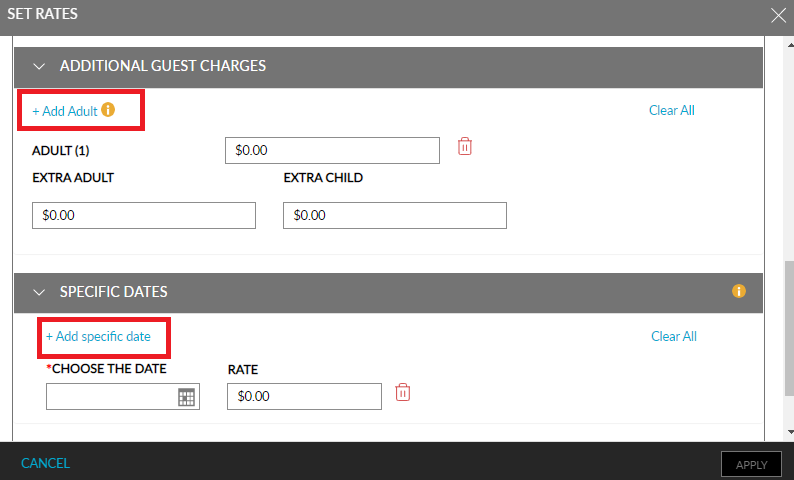
Add custom adult charges for up to 8 adults by clicking Add Adult.
When enabled, the feature setting Price by Persons helps calculate the pricing based on the number of persons rather than the number of adults. Add Person button replaces the Add Adult button. The pricing gets calculated based on the number of persons irrespective of adults or children.
For example:
Base charge for 2 adults and 1 child = $100
Adult/Person 1 = $15
Adult/Person 2 = $20
Extra Adult = $25
Extra Child = $5
Considering the above case, when 2 adults and 4 children check-in, the calculation works as follows:
Price by Persons disabled - $100 (base price) + $5 + $5 + $5 (for extra children) = $115
Price by Persons enabled - $100 (base price) + $15 (extra person 1) + $20 (extra person 2) + $5 (extra child) = $140
With the date range, a specific date or multiple dates can have custom rates. Click Add specific date and choose the date to specify the charge.
Click Apply to apply the rates on the calendar.
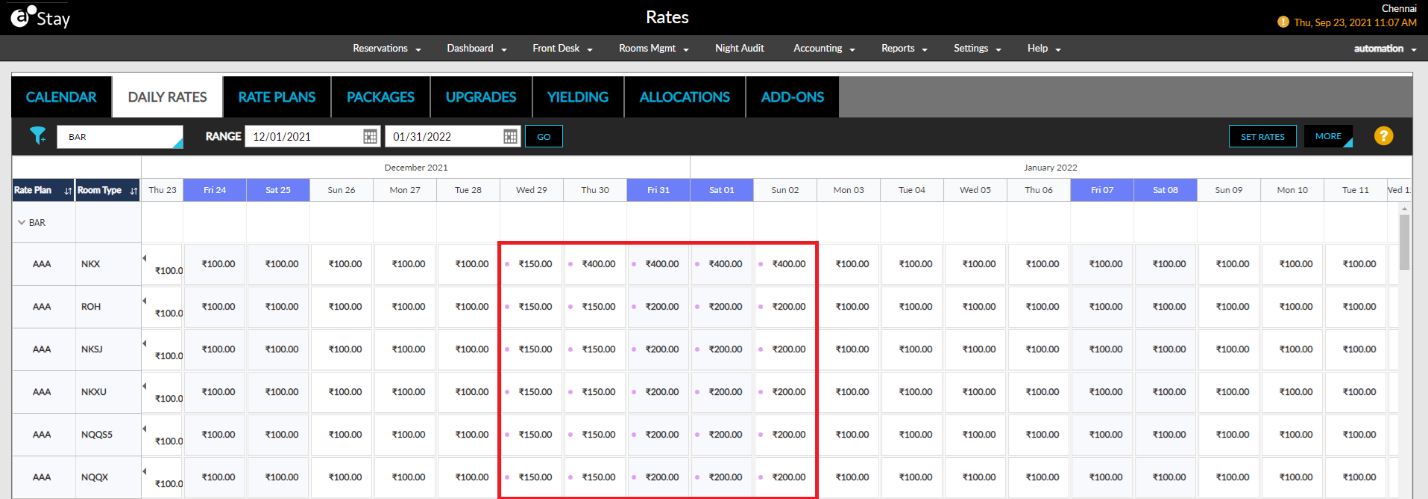
The overridden rates are indicated in the calendar, as shown on the following screen.
Revert Rates
Click the More button at top right corner of the screen.
Select Revert Rates from the drop-down list. The Revert Overridden rates pop-up screen appears.
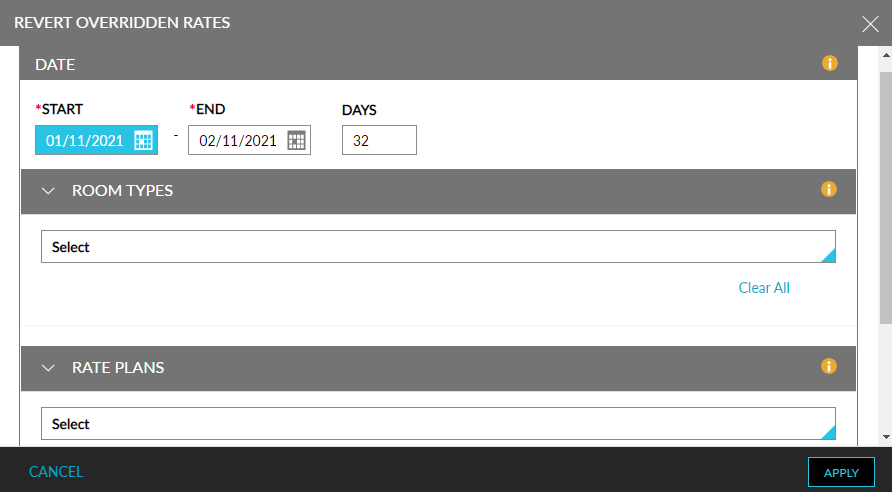
Revert to the original rates for a date range, a specific room type, or a rate plan.
Click Apply to revert the overridden rates.
Apply Rule Set
This option lets users to associate the previously created rule sets to a specific date range. Rule sets are generally created to dynamically adjust rates based on specific business rules.
Click the More button at top right corner of the screen.
Select Set Rule Set from the drop-down list. The Select Rule Set pop-up box appears.
The Set Rule Set option will only be enabled when a date is selected in the calendar.
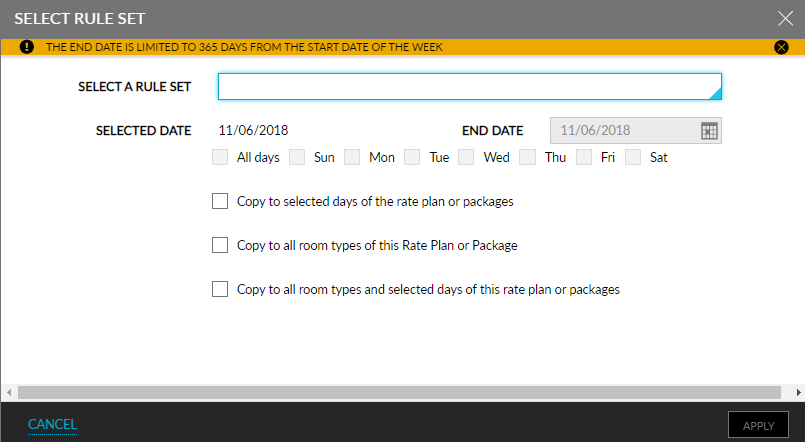
Select a rule set from the drop-down list in the Select Rule Set pop-up. The rule sets created in the Yielding tab will be displayed in the drop-down list.
Select to copy from one of the following options:
|
Field |
Description |
|---|---|
|
Copy to selected days of the rate plan or packages |
Allows the user to apply the rule set to all or selected days of the week. |
|
Copy to all room types of this Rate Plan or Package |
Allows the user to apply the rule set to all room types in the selected rate plan or package. |
|
Copy to all room types and selected days of this rate plan or packages |
Allows the user to apply the rule set to all room types and days of the selected Rate Plan or Package. |
Click Apply. The rule set is applied to the selected calendar.
Set & Revert Restrictions
This option allows the user to set or revert restrictions for a particular date or a date range. . Users can now apply restrictions directly from the Daily Rates screen.
Perform the following steps to set restrictions.
Navigate to Settings ➜ All Settings ➜ Reservations ➜ Rates.
Navigate to the Daily Rates tab.
Select the Set Restrictions option. The Set Restrictions pop-up window appears.
Optionally, users can also drag, drop, and select multiple cells on the Daily Rates screen for the preferred dates and select the Set Restrictions option. In this case, the details of the selected cells are pre-filled in the Set Restrictions pop-up screen.
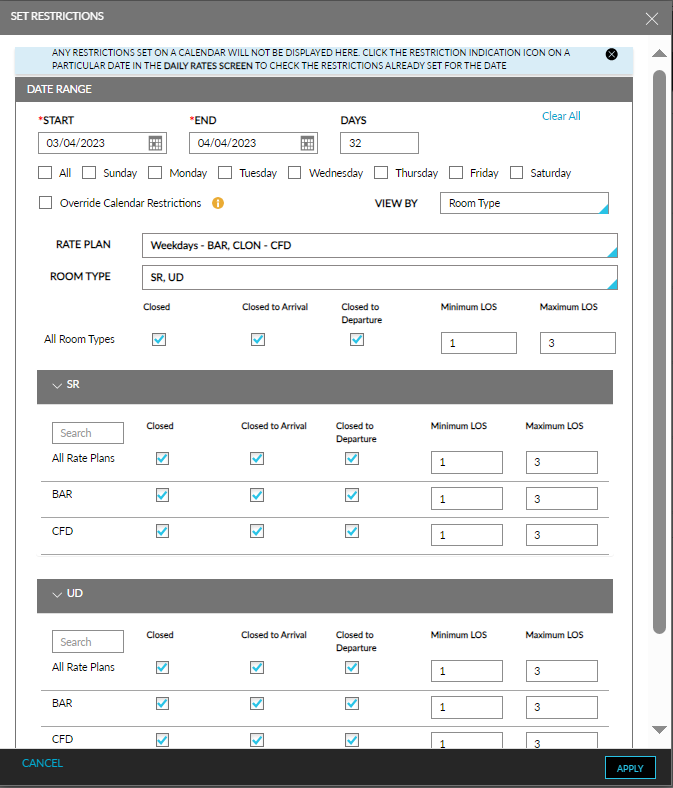
Select the date range and relevant days of the week and rate plans or room types.
Refer to the following table and select the values for the remaining fields:
|
Field |
Description |
|---|---|
|
View By |
The is drop-down list that allows users to configure restrictions by rate plans or room type.
|
|
Rate Plan |
This is a multi-select drop-down list.
|
|
Room Type |
This is a multi-select drop-down list.
|
|
All Room Types |
|
Click the boxes to choose the restrictions that need to be added to the selected dates per room type.
|
Field |
Description |
|---|---|
|
C |
Closed |
|
CTA |
Closed to Arrival |
|
CTD |
Closed to Departure |
|
MIN LOS |
Minimum Length of Stay |
|
MAX LOS |
Maximum Length of Stay |
Click Apply.
Click on the More button.
Navigate to Revert Restrictions in the drop-down list to open the Revert Restrictions pop-up screen.
Select the rate plans or room types and save to remove restrictions.
Display Restrictions for the Applied Cells
For restrictions to always be displayed in a cell along with the rate on the Daily Rates screen, a new flag, Always Show Restrictions is added to the Settings section of the Daily Rates screen. (Settings ➜ Rates ➜ Daily Rates ➜ More ➜ Settings ➜ Always Show Restrictions).
When the Show Restrictions checkbox is selected in the Daily Rates screen, the rates are no longer displayed, and the restrictions are displayed more prominently. The following changes can be observed when this checkbox is selected:
-
The occupancy percentage is displayed at the top-left corner of the cell. The color of the occupancy percentage is based on the selections made in the Occupancy Thresholds field in the Daily Rate Settings screen.
-
If an yielding rule set is applied to a cell, the applied rule set is displayed as a hyperlink in the top-right corner of the cell. When clicked, users are navigated to the respective rule set in the Yielding tab of the Rates screen.
-
The additional details of the rates and the restrictions applied to a cell are displayed when users hover over the cell.
-
The restrictions applied for the cell is displayed in the following color codes:
-
Closed (C): Red
-
Closed to Arrival (CTA): Red
-
Closed to Departure (CTD): Red
-
Minimum LOS: Yellow
-
Maximum LOS: Yellow
-
No restriction: Grey
-
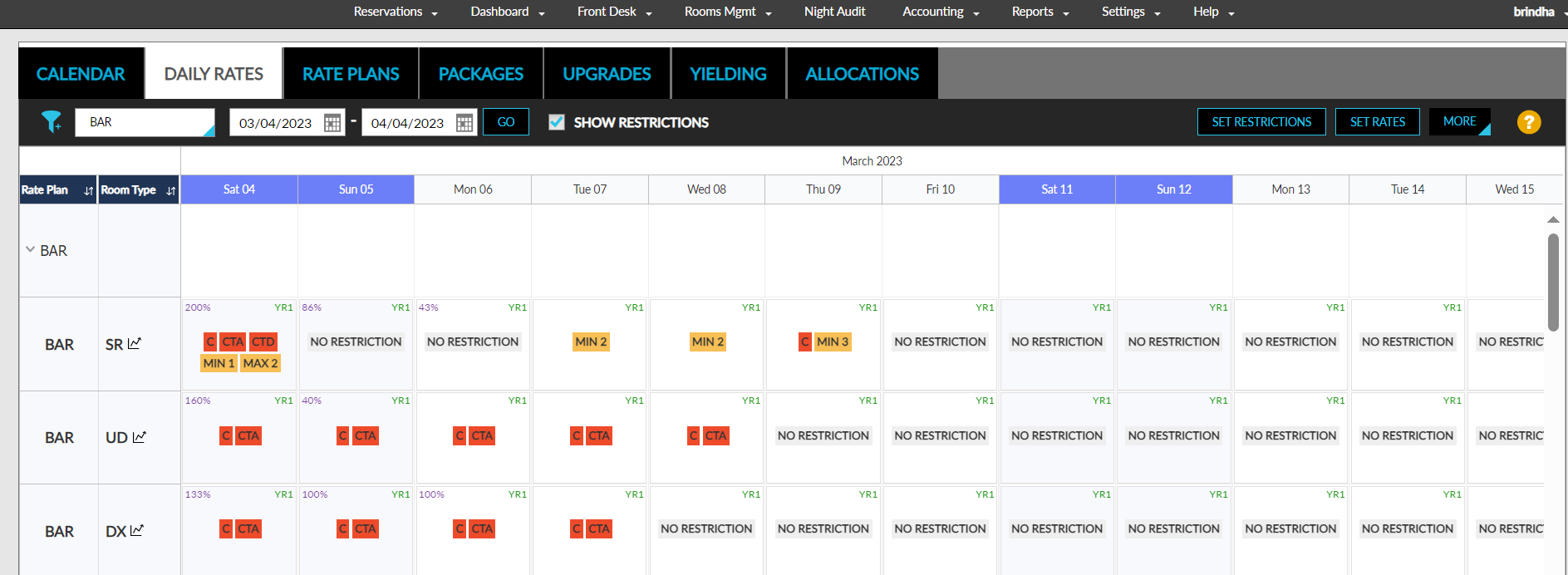
The Show Restrictions checkbox is not selected by default. The checkbox is no longer selected when users navigate to a different tab or refresh the screen.
Viewing Details of Restrictions Applied When Multiple Cells are Selected
When multiple cells with restrictions are selected, the details of the restrictions can be viewed in the Set Restrictions screen. The following are the various scenarios for which users can view the details of the restrictions applied:
-
When different restrictions are applied for the selected cells
-
When same restrictions are applied for the selected cells
-
When the selected cells have both similar and different restrictions
When Different Restrictions are Applied for Selected Cells
When users select cells for which different restrictions are applied and navigate to the Set Restrictions screen, the restrictions that are different across the selected cells are highlighted and displayed without any values in the rate plan/room type section.
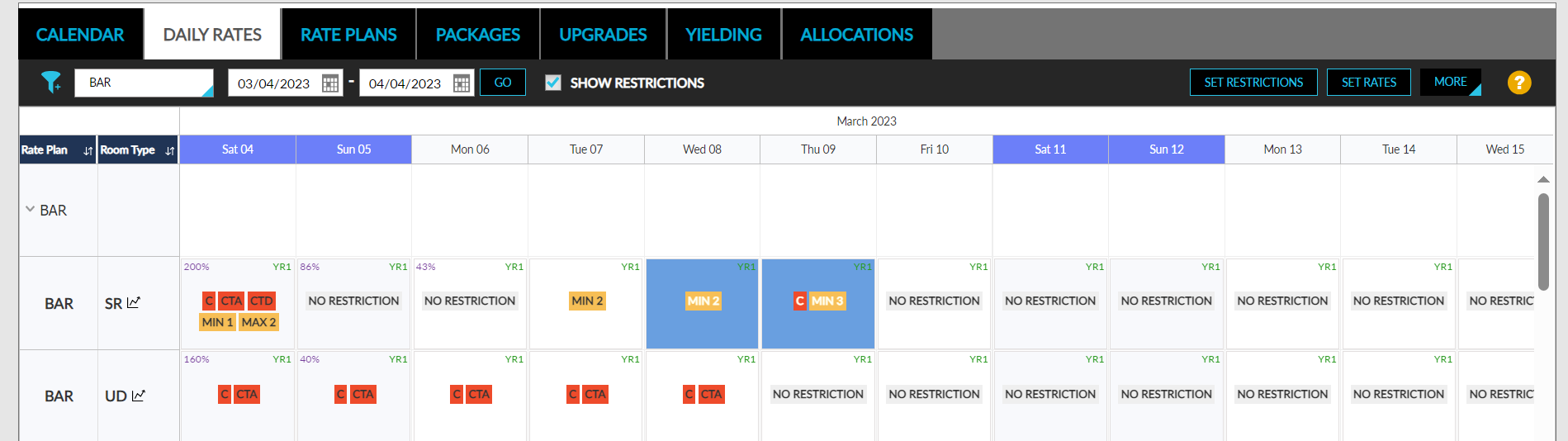
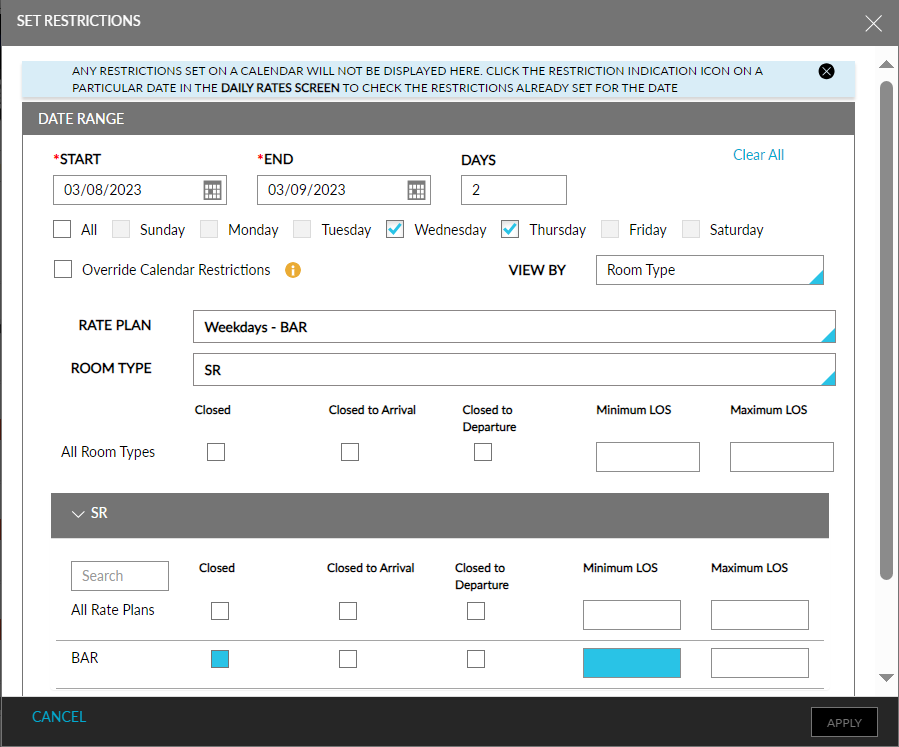
Users can enter values for the highlighted fields if required. When a value is entered, the field will no longer be highlighted. Users can also modify the other non-highlighted fields if required. The modifications made are uniformly applied to the selected cells.
When Same Restrictions are Applied for Selected Cells
When users select cells for which the same restrictions are applied and navigate to the Set Restrictions screen, the restriction configured is displayed in the rate plan/room type section. Users can modify the restrictions if required. The modifications made are uniformly applied to the selected cells.
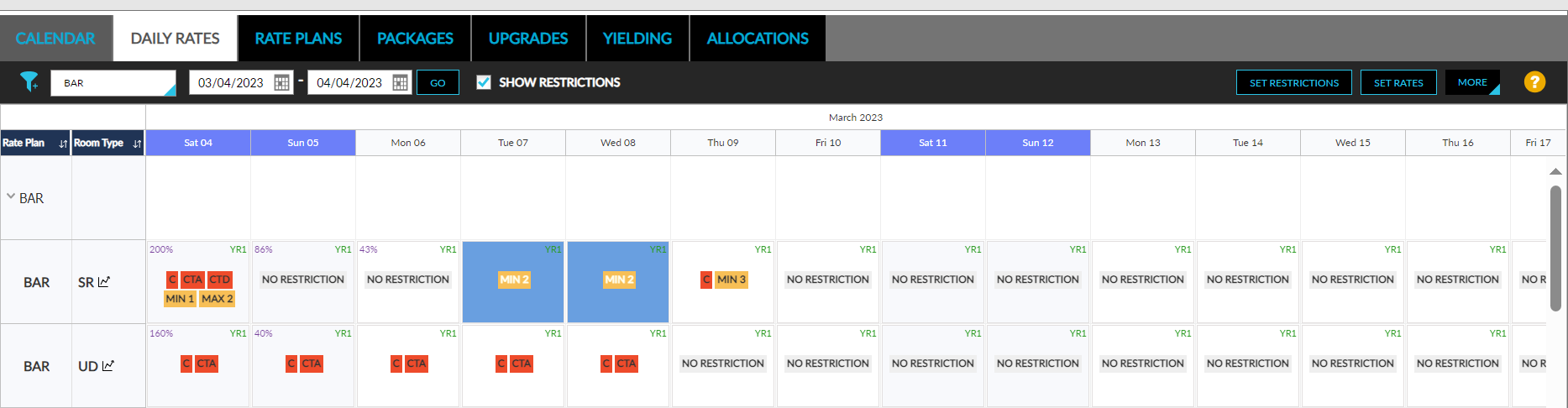
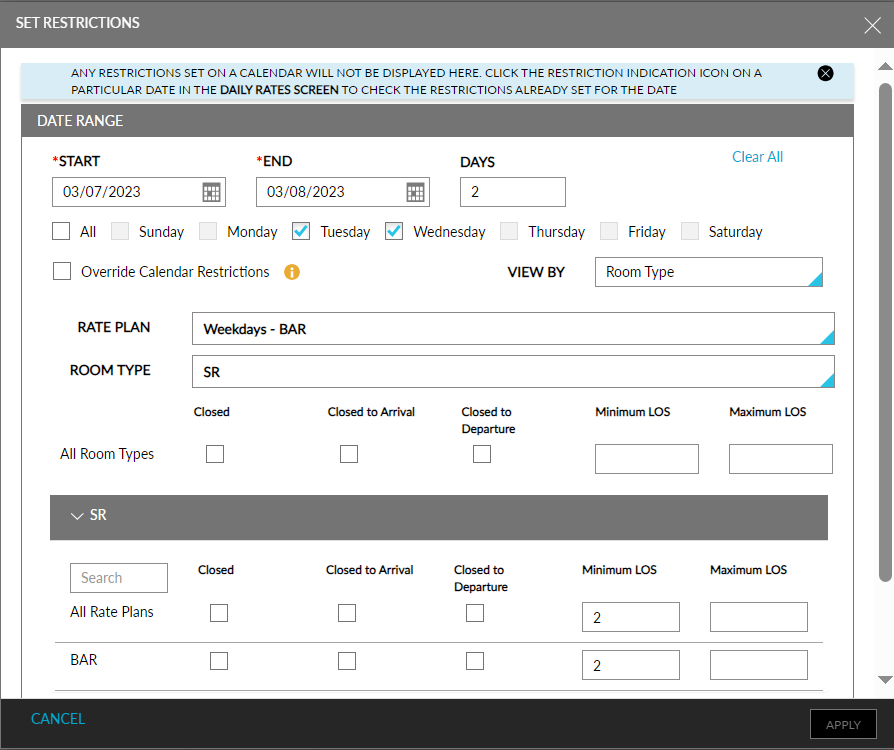
When Selected Cells Have Similar and Different Restrictions
When users select cells that have similar and different restrictions applied and navigate to the Set Restrictions screen, the restrictions that are different across the selected cells are highlighted and the restrictions that are similar are displayed in the rate plan/room type section. Users can modify the restriction values if required. The modifications made are uniformly applied to the selected cells.
Daily Rates Settings
Click on the More button at the top right corner of the screen.
Select Settings from the drop-down list. The Daily Rates Settings pop-up appears.
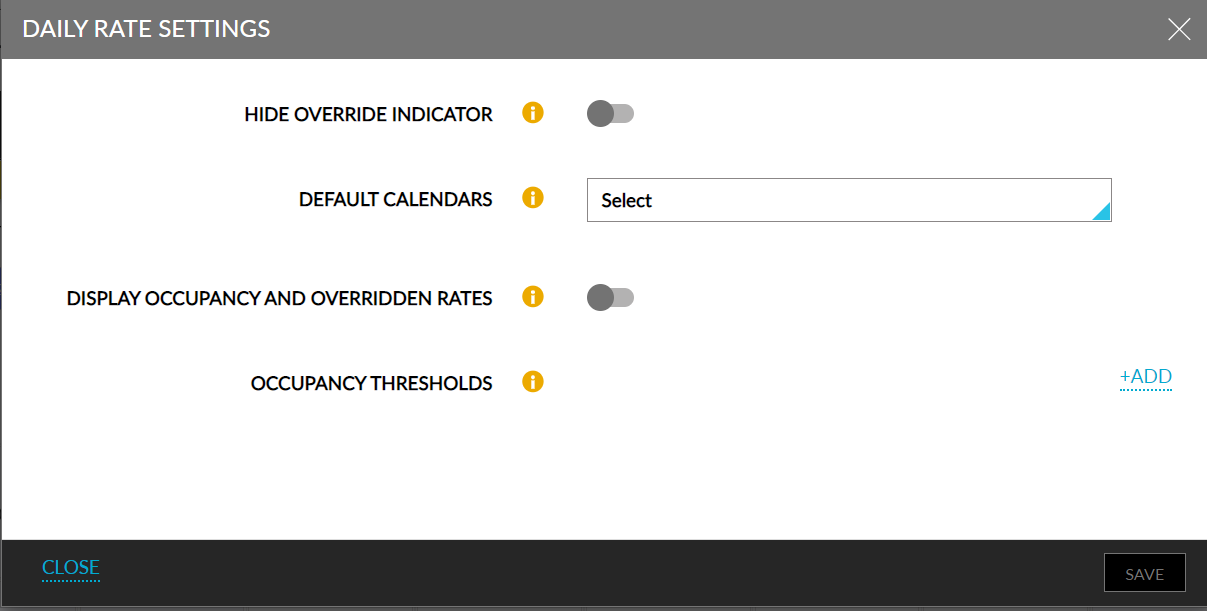
Enable the Hide Override Indicator toggle to hide the overridden rates indicator in the Daily Rates screen.
Select one or more calendars from the Default Calendars drop-down list to display by default when the Daily Rates screen loads.
Click +Add to set multiple color codes to indicate occupancy status for the days in the Daily Rates screen.
|
Field |
Description |
|---|---|
|
+Add |
Set a new color code. |
|
Type |
Select between Less Than and More Than from the drop-down list. |
|
Value% |
Add a percentage to indicate occupancy. |
|
Color |
Select the available color codes in the drop-down list to indicate the occupancy status. |
|
Delete Icon |
Delete the set color code. |
Enable the Display Occupancy and Overridden Rates flag to display the occupancy % and the overridden rate details on the Daily Rates screen.
Click Save to confirm the Daily Rates settings.
Display Occupancy Percentage and Yielding Rates in the Daily Rates Screen
Stay displays the yielding rates in the Daily Rates tab of the Rates screen (Settings ➜ Rates ➜ Daily Rates) that is calculated based on the room type occupancy percentage configured for a Yield By Room Type rule set created at the Occupancy level.
The yielding rates calculated from the rule sets created at the Length of Stay and Advance Booking levels are not displayed. The yielding rates calculated from the rule sets created at the Occupancy level are displayed as strike through rates.
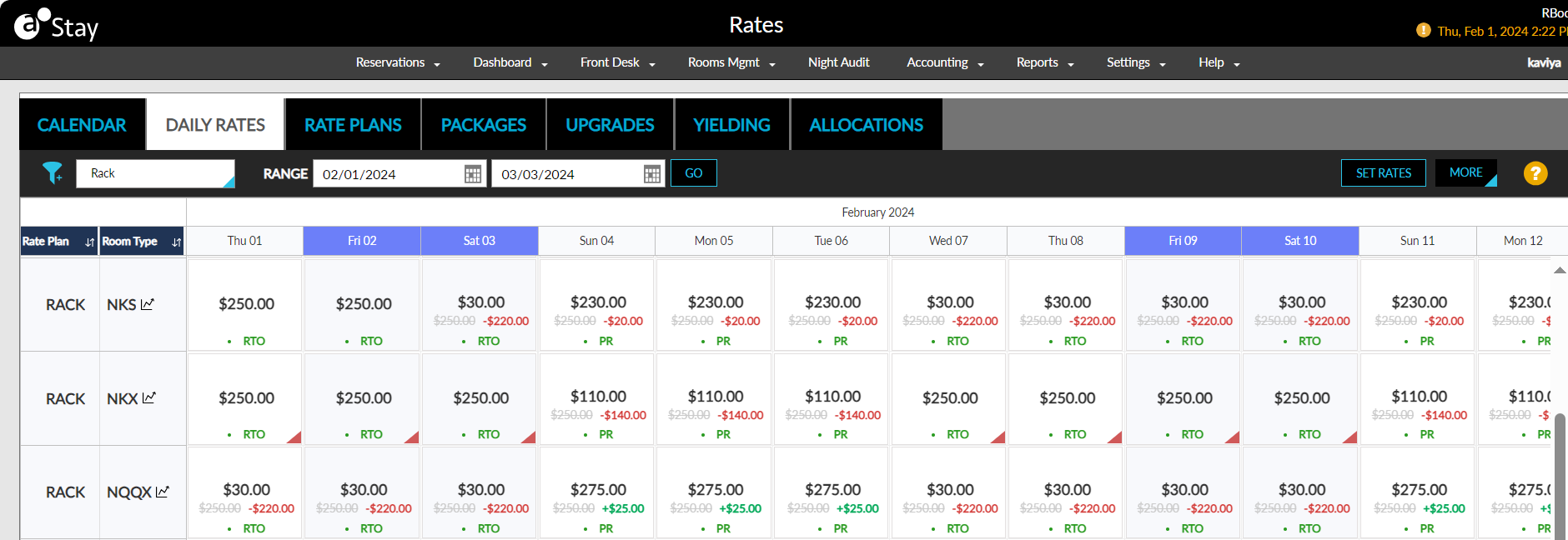
When the flag, Display Yield Rates, in the Daily Rate Settings screen (More ➜ Settings) is enabled, the yielding rates calculated based on the occupancy percentage configured for a Yield By Room Type rule set created at the Occupancy level is displayed. When disabled, the yielding rates is not displayed.
Ability to Set Rates for Multiple Rate Plans in the Daily Rates Tab
Stay allows users to set rates for multiple rate plans simultaneously in the Daily Rates tab in the Rates screen (Settings ➜ Rates ➜ Daily Rates).
Feature Setting
The following new feature setting has been added to allow users to set rates for multiple rate plans:
-
Name: Pricing Multiple Rate Plan
-
Value: Must be enabled
-
Comments: License is not required
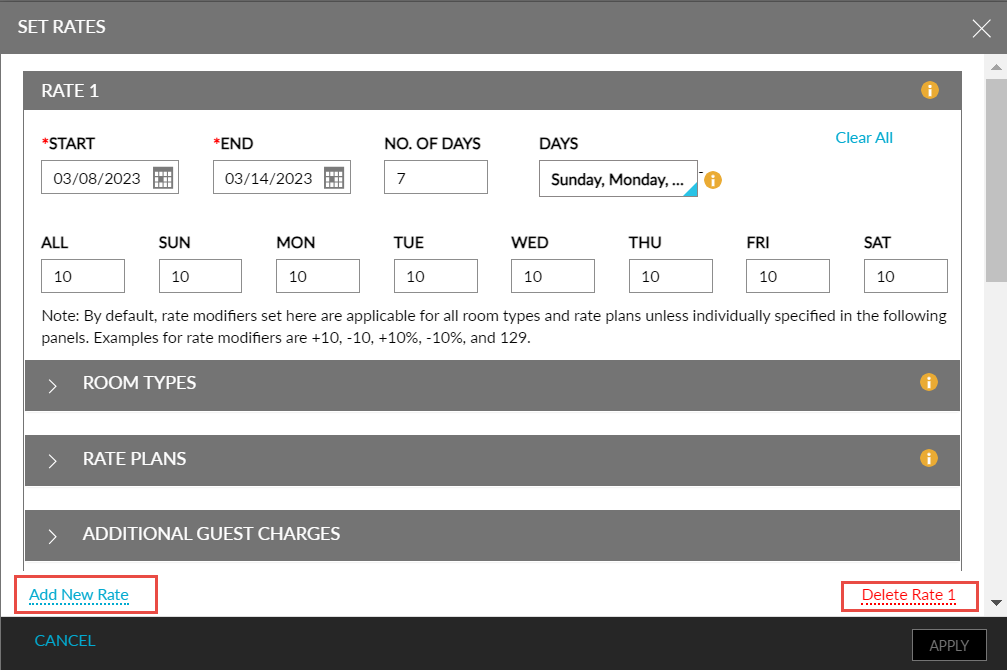
When this feature setting is enabled, users can set rates for multiple rate plans using the Add New Rate option in the Set Rates screen (Settings ➜ Rates ➜ Daily Rates ➜ Set Rate). When clicked, users can select the rate plans from the Select Rate Plan drop-down list in the Rate Plans section. Users can select multiple rate plans, but the same rate plan cannot be selected more than once.
Once the rate plan is selected, users can configure the room type, additional guest charge, and the specific dates for which the configured rates must be applied. Users can configure multiple rate plans with different values using the Add New Rate option. The configured rates can be deleted using the Delete Rate option.